Library Blog
-
The Industrial School for Girls, 1911
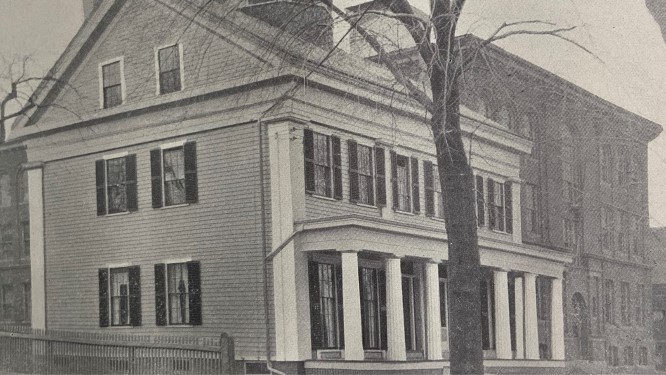
Located at 41 Atherton Street was the Industrial School for Girls, a vocational school aimed at helping young women secure trade jobs. The school opened on October 16, 1911 and originally offered classes in dress making, millinery, and supplementary training in subjects such as English and arithmetic. As the school grew in popularity, additional courses in household…
-
Historic Blazes in Somerville Schools, 1979
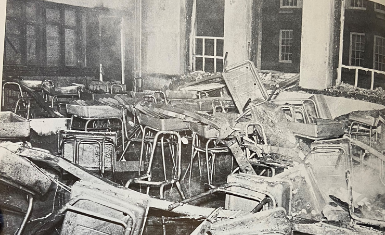
Did you know that there was once a serious fire at Somerville High School!? The fire took place on March 18, 1979 and was labeled a three-alarm fire. The firetrucks first arrived at the scene at 4:30 am and were led by Fire Captains Thomas Doherty and Robert Glover. Seven classrooms were destroyed by the…
-
The Blizzard of ’78
While weather forecasting had improved by the late 1970’s, many people still believed that the forecasts were inaccurate most of the time. The day before the blizzard started, most people believed that it wouldn’t turn out to be that big of a problem. Workers and students went about their day like it was a normal…
-
Somerville Theatre, 1914
A staple of Davis Square is the Somerville Theatre. The theatre, which is located in the Hobbs Building at 55 Davis Square, dates back to 1914. The theatre was designed to show motion pictures as well as live performances such as plays and vaudeville acts. According to a Somerville Journal article, the newly constructed theatre “has…
-
Pitching in During WWI: SHS Students to the Rescue
The development and improvement of new weaponry made World War I the bloodiest war of its time. When Washington expressed a need for surgical dressings, those who could help offered up their time, including some Somerville High School students. During the war, Somerville High formed the Somerville High School Patriotic Association to help with the…
-
Sam Walter Foss: SPL Librarian, Journalist, and Poet, 1858-1911
We have had some amazing library staff over the years. One of our more famous staff members is librarian Sam Walter Foss. Sam Walter Foss was born in Candia, New Hampshire in 1858 to Dyer and Polly Foss. Sam spent his childhood helping with his father’s farm and would later attend Portsmouth High School. After…
-
Historic Somerville Meets “Hamilton”
Did you know that there is a house in Somerville that was built before the Revolutionary War? The “Oliver Tufts House” sometimes referred to as the “Peter and Oliver Tufts House” is believed to have been built on a parcel of farmland back in 1714. According to a June 26, 1935 Somerville Journal article by…
-
Lamps of Learning at the West Branch Library, 1909
Next time you are out and about by the West Branch Library in Davis Square – since we can’t yet go in – take a moment to appreciate the details of the entrance to the building that has welcomed readers for more than 100 years. Lamps are positioned on either side of the staircase, and on the…
-
Renovation, 1976
We are missing our patrons and we hope you haven’t forgotten what we look like! Maybe you are one of our patrons who would come in and head to the third floor balcony to find a cozy spot to do your work. Here’s a fun library fact for you, there wasn’t always a third floor…
-
The SPL Traveling Library, 1901
The library bookmobile is one way that libraries can meet their users who might not be able to use the library ordinarily. Bookmobiles date way back in the United States, beginning around the early 1900s. Back then they were typically referred to as “traveling libraries” or “wagon libraries”. Libraries would use various forms of transportation, such as bicycles,…
-
Somerville’s Inspector General of Hops, 1806-1842
You might guess from the book groups we run at Remnant and Aeronaut Brewing that we are fond of hops, and you would be right! But would you have guessed that New England was once the center of hops production in the U.S., and that a Ten Hills resident revolutionized the processing of harvested hops?…
-
Before there was a West Branch…, 1896
Before the West Branch library got a proper building in 1909, library service in West Somerville (and in East, North and South Somerville) was delivered by partnerships with local businesses, which became the early branches – then usually called agencies – of the SPL. These agencies served as pickup/dropoff points for library books, but for…
-
Hurricane of 1938
This week we were spared the worst of Hurricane Florence’s destruction, but 80 years ago on September 21, the 1938 hurricane known as the Long Island Express walloped New England with 100+ mph winds, killing more than 700 and leaving more than $300 million in damage (in 1938 dollars). Here in Somerville, the damage was…
-
Somerville’s First Park, 1870
Central Hill Park was the first public parkland in Somerville. Created in 1870 with the purchase of 38 acres by the City (price tag: about $38,000), the lot spanned Highland Avenue between Walnut and School streets, and bordered by Medford Street on the north. Public buildings included City Hall, the high school, the Central Library,…
-
Ghosts at the West Branch?, Early 20th Century
The West Branch of SPL opened to the public on May 27, 1909. It was one of 2,509 libraries built in the U.S. with funds from Andrew Carnegie – the Central Library and East Branch were also built with Carnegie funds. The image here shows the adult reading room in the early 20th century, now…
-
Rembering George Dilboy, WWI hero killed in action 100 years ago today
Dilboy is a familiar name our city: Dilboy Field in West Somerville, the Veterans of Foreign Wars Post 529 – Dilboy Post – on Summer Street; the statue of Dilboy by City Hall. He was killed in action on July 18, 1918, near Chateau Thierry, France, and awarded the Medal of Honor for bravery posthumously….
-
SHS Radiator cover illustrations by Bill Hanley, Mid 1940s
Today we know the Somerville High School Radiator as the annual yearbook, but in the 19th and for part of the 20th century it was a monthly student literary and news magazine, often with striking cover art and design. The group of covers we’re featuring for today’s Throwback Thursday were created by Bill Hanley, who…
-
Mae D. Frazer, Somerville’s first known female publisher, 1852-1919
As National Women’s History Month draws to a close this week, our spotlight is on Mae Durell Frazar (1852-1919) an accomplished writer, editor, world traveler, and entrepreneur who lived most of her life on or near Prospect Hill. Frazar is chiefly known as Somerville’s first female publisher. In 1887 she created a 16-sheet paper called…
-
The Mid-Century Puzzle Craze at SPL
Would you believe that word-puzzle contests were so popular in the mid-20th century that many libraries had to put their dictionaries under lock and key? Puzzle-solvers devoured dictionaries, encyclopedias, and other reference works in pursuit of cash prizes, and deluged library staff with requests for answers to puzzle questions. They ripped pages from dictionaries and…
-
New Biography of Somerville’s Missy LeHand, 1896-1944
Blog by Kathryn Smith, author of The Gatekeeper: Missy LeHand, FDR and the Untold Story of the Partnership That Defined a Presidency (opens new tab). Thanks, Cathy, for letting me be your guest blogger today. Missy LeHand was one of Somerville’s most famous residents in the 1920s-1940s, when she was the private secretary of Franklin…